
Buttons
Buttons allow users to take actions and make choices, with a single click.
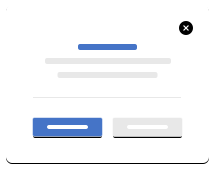
Primary Button
The Primary Button description from Figma goes here
1<button class="btn btn-primary">Button text</button>
Secondary Button
The Dark Button description from Figma goes here
1<button class="btn btn-secondary">Button text</button>Danger Button
The Danger Button description from Figma goes here
1<button class="btn btn-danger">Button text</button>Large Button
1<button class="btn btn-primary btn-lg">Button text</button>Medium Button
1<button class="btn btn-primary btn-md">Button text</button>Outline Primary Button
The Outline Secondary Button description from Figma goes here
1<button class="btn btn-outline-primary">Button text</button>Outline Secondary Button
The Outline Secondary Button description from Figma goes here
1<button class="btn btn-outline-secondary">Button text</button>Small Button
1<button class="btn btn-primary btn-sm">Button text</button>Accessibility
Make it clear what this button does for the user.
-
Make it clear what this button does for the user.
-
Use at most two buttons in one group.
-
Attribute indicating if the element should be.
-
Use more than two words for call to action.
-
First letter of each sentence defaults to a capital letter.
-
Attribute indicating if the element should be.
Classes
Complete list of all CSS classes for the component.
| Name | Class |
|---|---|
| Primary Button | button button-primary |
| Secondary Button | button button-secondary |
| Danger Button | button button-danger |
| Large Button | button button-large |
| Medium Button | button button-medium |
| Outline Primary Button | button button-outline-primary |
| Outline Secondary Button | button button-outline-secondary |
| Small Button | button button-small |